> ## Documentation Index
> Fetch the complete documentation index at: https://help.snipin.ai/llms.txt
> Use this file to discover all available pages before exploring further.
# Publish content
> Where your content come to life
Once Snipin AI finishes processing your session videos, the real magic begins — your event’s **microsite** is automatically generated.
This is your ready-to-share digital hub where your audience can explore key moments, short clips, takeaways, and visuals — all powered by Snipin AI.
## Step 1: Viewing Auto-Generated Snippets/Clips
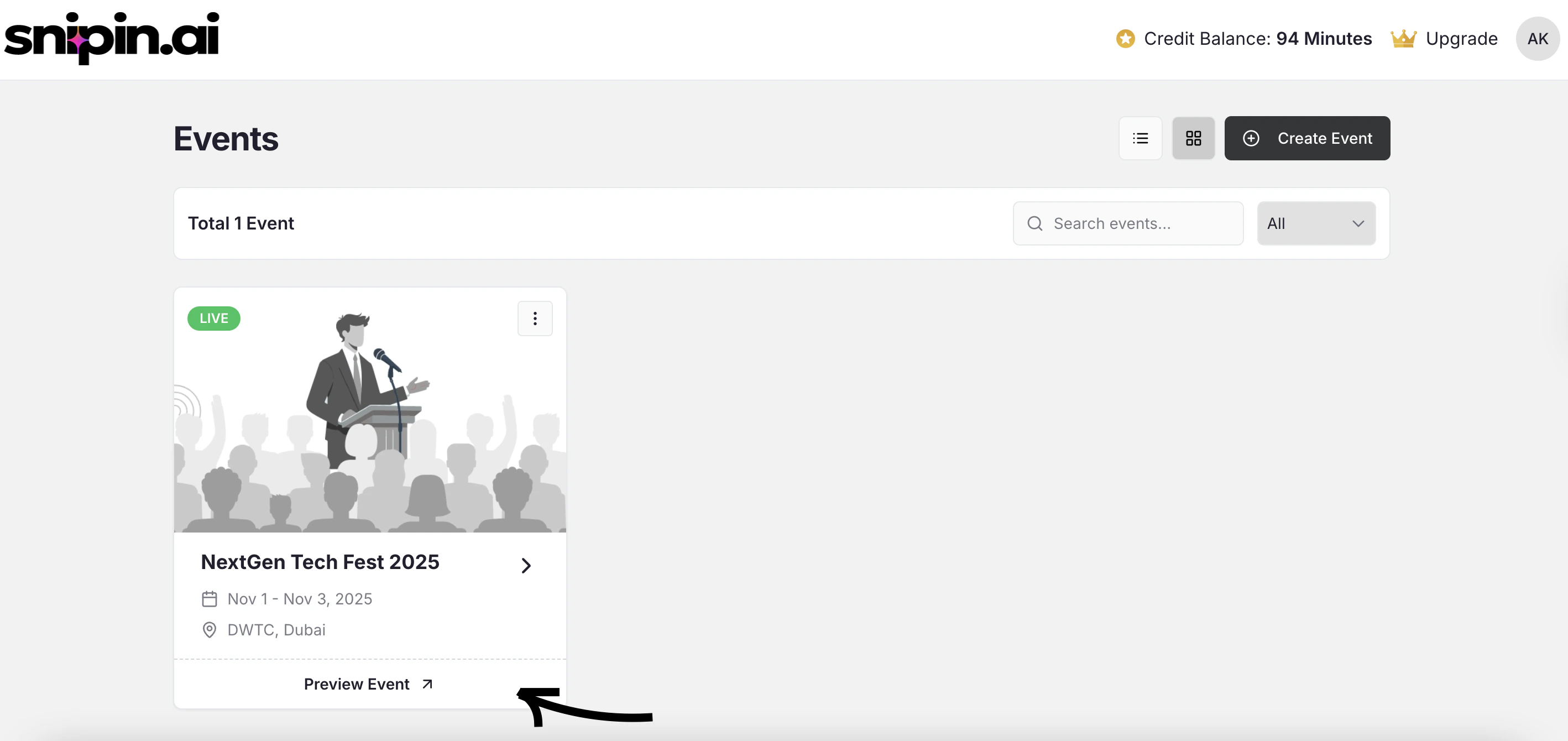
After processing is complete, go to your event dashboard and click on the event and you will see “ Preview Frontend” Link at top right to access your microsite.
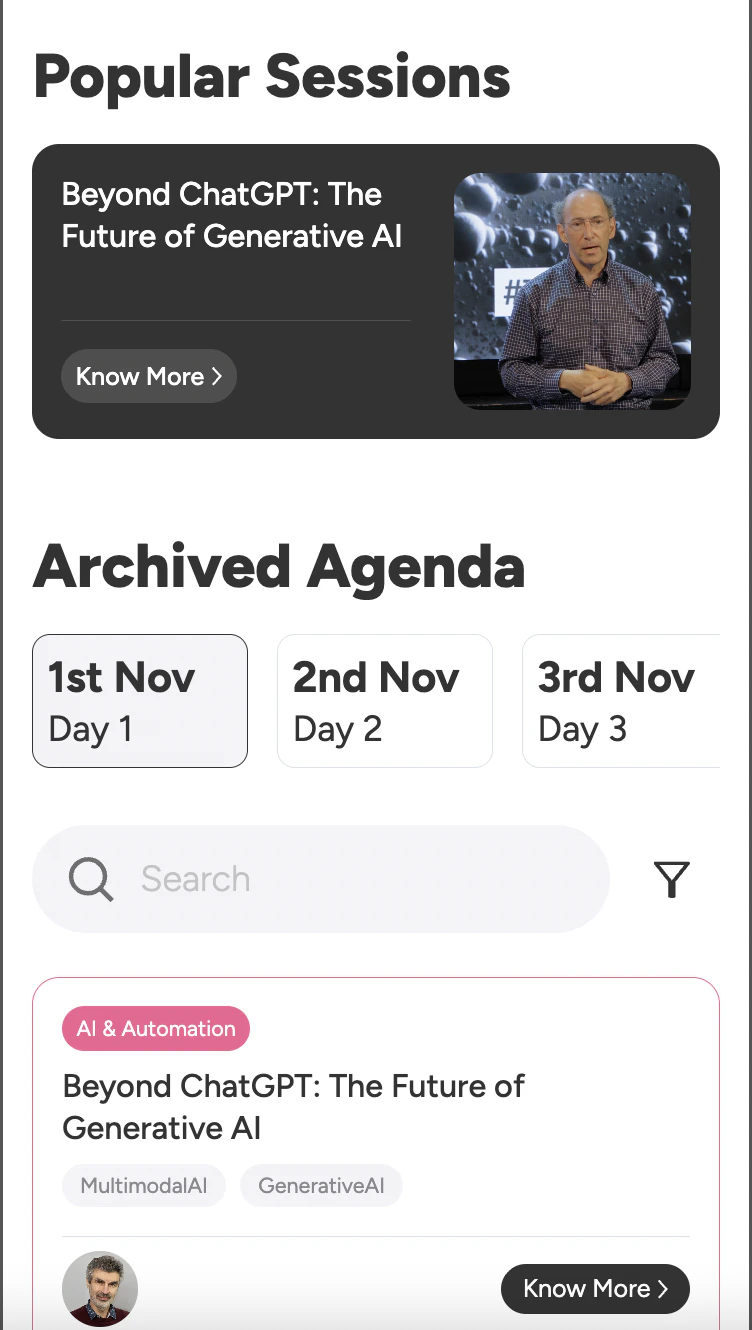
You’ll see several automatically generated content sections:
* **Summary:** A concise AI-written overview of your session.
* **Snippets:** Short, shareable video moments (usually 30–60 seconds).
* **Key Takeaways:** Core insights and highlights extracted from your session.
* **Visuals:** Smartly captured stills and thumbnails from the video for use in galleries or sliders.
{image}
 *Tip:* Each clip is auto-tagged and grouped under its respective track or session to keep your microsite clean and structured automatically.
## Step 2: Editing Titles and Descriptions
Every clip and takeaway comes with automatically generated text, but you can personalize it to match your tone or branding.
To edit:
1. Click the **Edit icon** (✏️) beside the clip title or description.
2. Make your changes.
3. Click **Save** — the microsite updates instantly.
You can edit:
* Clip titles and captions
* Session descriptions
* Key takeaway bullet points
{image}
*Pro Tip:* Use short, action-driven titles like “Top Insights from the Keynote” or “Why AI Matters for Events” — they perform better on social and microsites.
## Step 3: Publishing or Unpublishing Micro Content
Not every generated clip needs to go live — you have full control.
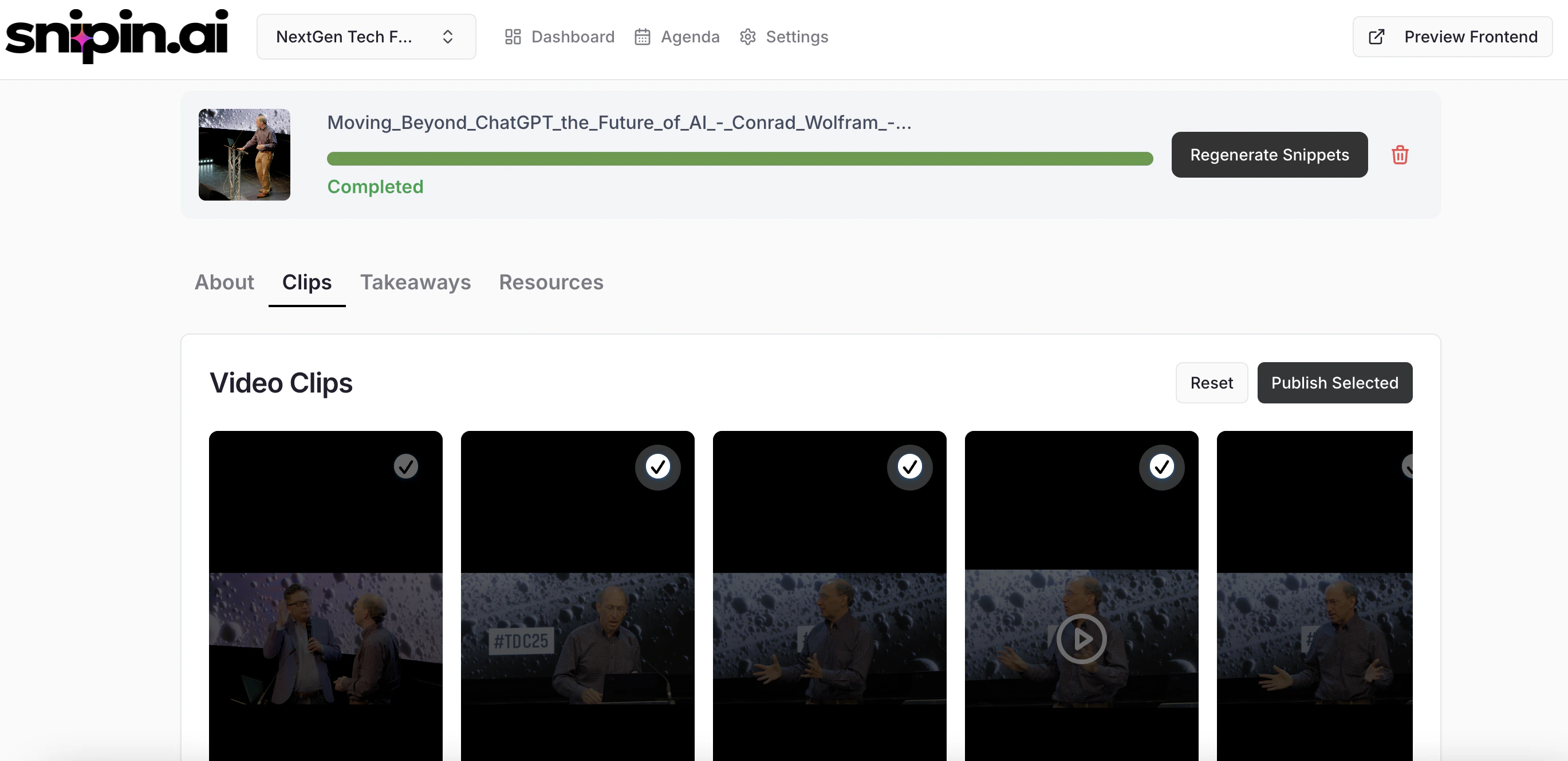
On your session or event page, you’ll find a **Publish Toggle** for each clip or takeaway:
* 🟢 **Publish ON:** Visible on your live microsite.
* 🔴 **Publish OFF:** Hidden from public view (but still available in your dashboard).
To publish/unpublish:
1. Toggle the switch beside the clip.
2. Changes reflect instantly on your microsite preview.
*Tip:* Each clip is auto-tagged and grouped under its respective track or session to keep your microsite clean and structured automatically.
## Step 2: Editing Titles and Descriptions
Every clip and takeaway comes with automatically generated text, but you can personalize it to match your tone or branding.
To edit:
1. Click the **Edit icon** (✏️) beside the clip title or description.
2. Make your changes.
3. Click **Save** — the microsite updates instantly.
You can edit:
* Clip titles and captions
* Session descriptions
* Key takeaway bullet points
{image}
*Pro Tip:* Use short, action-driven titles like “Top Insights from the Keynote” or “Why AI Matters for Events” — they perform better on social and microsites.
## Step 3: Publishing or Unpublishing Micro Content
Not every generated clip needs to go live — you have full control.
On your session or event page, you’ll find a **Publish Toggle** for each clip or takeaway:
* 🟢 **Publish ON:** Visible on your live microsite.
* 🔴 **Publish OFF:** Hidden from public view (but still available in your dashboard).
To publish/unpublish:
1. Toggle the switch beside the clip.
2. Changes reflect instantly on your microsite preview.
 {image}
*Tip:* Use this to curate your microsite and show only the most engaging or relevant content.
## Step 4: Organizing Clips into Sections or Tracks
Snipin AI automatically organizes all your content by:
* **Event → Day → Track → Session**
You don’t need to manually arrange anything — each session’s clips and visuals appear under the right track and day automatically.
{image}
*Pro Tip:* This structure makes your event content feel cohesive and easy to navigate — especially for multi-track, multi-day events.
## Step 5: Managing Public vs Private Access
Control who can view your microsite content.
Go to **Settings → Access Control** in your event dashboard.
You’ll see two options:
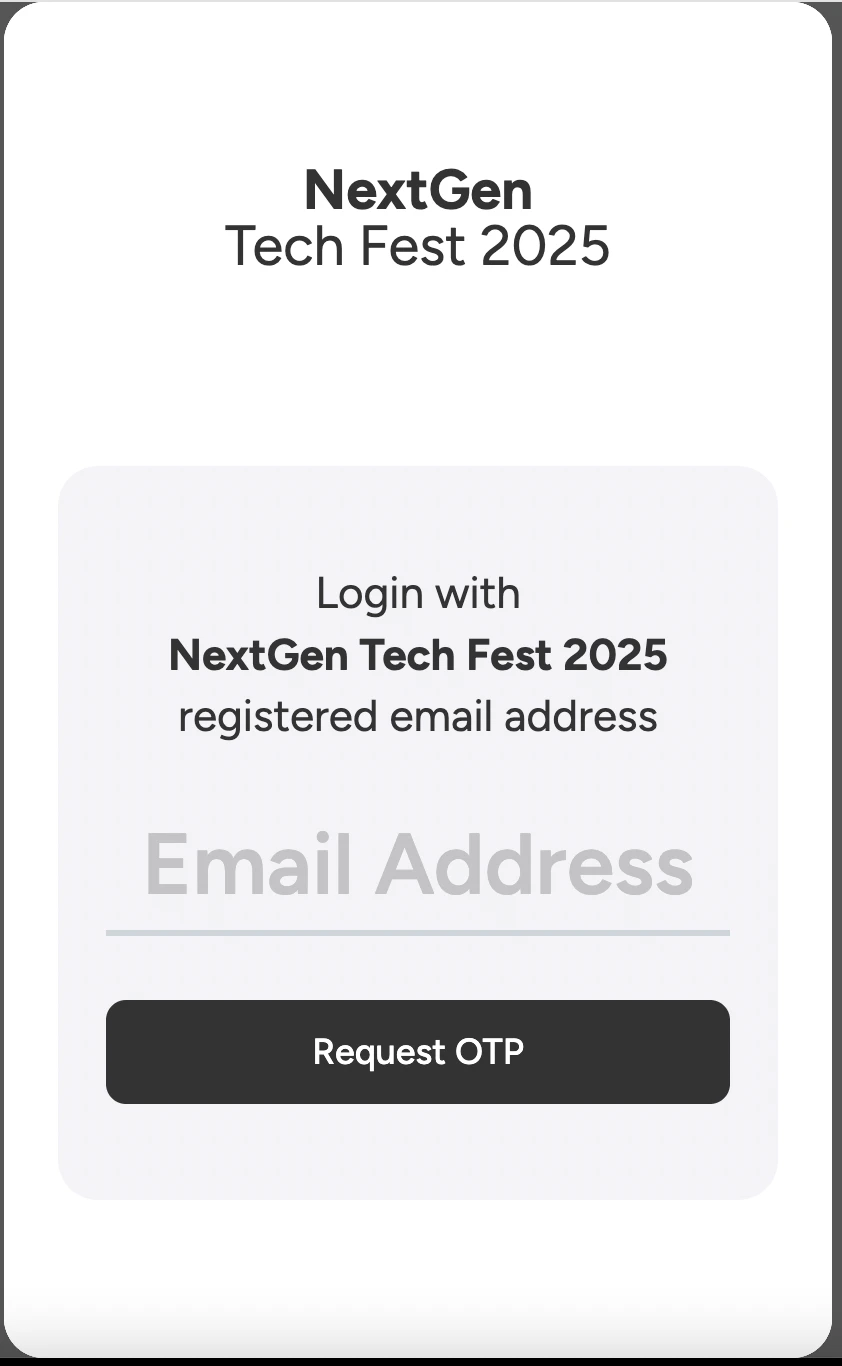
* 🌐 **Public Access:** Anyone can view the microsite by entering their email and verifying via OTP.
* 🔒 **Private Access:** Only users whose emails are pre-approved by the admin can access the content.
{image}
*Tip:* For internal events or paid content, choose **Private Mode**. For marketing or lead generation, go **Public** to drive reach and visibility.
## Step 6: Preview Your Microsite
Once you’ve published your clips and visuals, click **“Preview Microsite”** from your event dashboard.
This opens a live preview where you can:
* See how clips appear on your event page.
* Check visuals, key takeaways, and speaker cards.
* Validate layout before sharing it publicly.
{imagae}
*Pro Tip:* Always review your microsite on both desktop and mobile — Snipin AI’s microsites are fully responsive and optimized for both.
## Step 7: Share Your Microsite
When your microsite is ready, you can share it directly with your audience.
Options include:
* Copying your unique **microsite link**.
* Embedding the microsite in your **event website or platform**.
* Sharing individual clips on **LinkedIn, X (Twitter), or Instagram**.
*Tip:* Sharing AI-curated clips keeps your event’s engagement alive even after it ends.
## Need Help ?
We’re here to support you every step of the way.\
Email us anytime at [**info@snipin.ai**](mailto:info@snipin.ai) for help, feedback, or product guidance.
{image}
*Tip:* Use this to curate your microsite and show only the most engaging or relevant content.
## Step 4: Organizing Clips into Sections or Tracks
Snipin AI automatically organizes all your content by:
* **Event → Day → Track → Session**
You don’t need to manually arrange anything — each session’s clips and visuals appear under the right track and day automatically.
{image}
*Pro Tip:* This structure makes your event content feel cohesive and easy to navigate — especially for multi-track, multi-day events.
## Step 5: Managing Public vs Private Access
Control who can view your microsite content.
Go to **Settings → Access Control** in your event dashboard.
You’ll see two options:
* 🌐 **Public Access:** Anyone can view the microsite by entering their email and verifying via OTP.
* 🔒 **Private Access:** Only users whose emails are pre-approved by the admin can access the content.
{image}
*Tip:* For internal events or paid content, choose **Private Mode**. For marketing or lead generation, go **Public** to drive reach and visibility.
## Step 6: Preview Your Microsite
Once you’ve published your clips and visuals, click **“Preview Microsite”** from your event dashboard.
This opens a live preview where you can:
* See how clips appear on your event page.
* Check visuals, key takeaways, and speaker cards.
* Validate layout before sharing it publicly.
{imagae}
*Pro Tip:* Always review your microsite on both desktop and mobile — Snipin AI’s microsites are fully responsive and optimized for both.
## Step 7: Share Your Microsite
When your microsite is ready, you can share it directly with your audience.
Options include:
* Copying your unique **microsite link**.
* Embedding the microsite in your **event website or platform**.
* Sharing individual clips on **LinkedIn, X (Twitter), or Instagram**.
*Tip:* Sharing AI-curated clips keeps your event’s engagement alive even after it ends.
## Need Help ?
We’re here to support you every step of the way.\
Email us anytime at [**info@snipin.ai**](mailto:info@snipin.ai) for help, feedback, or product guidance.