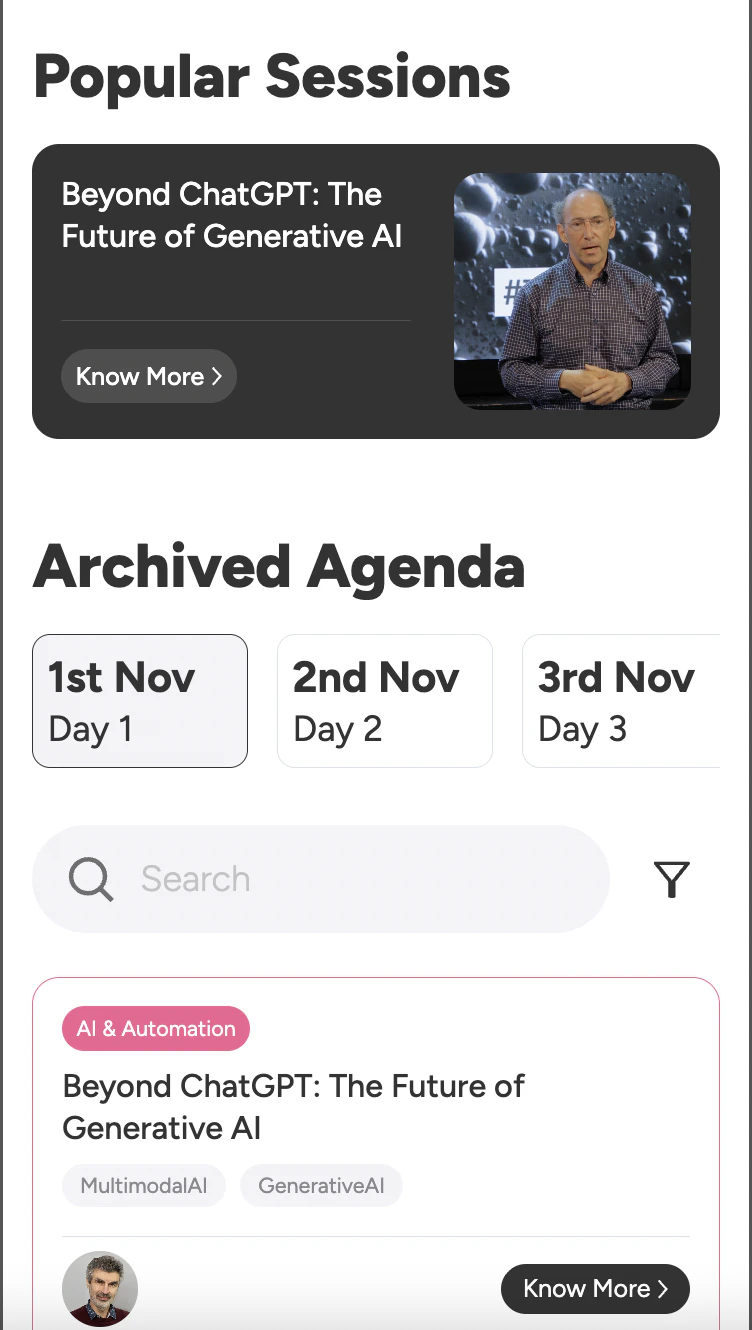
Once Snipin AI finishes processing your session videos, the real magic begins — your event’s microsite is automatically generated.This is your ready-to-share digital hub where your audience can explore key moments, short clips, takeaways, and visuals — all powered by Snipin AI.
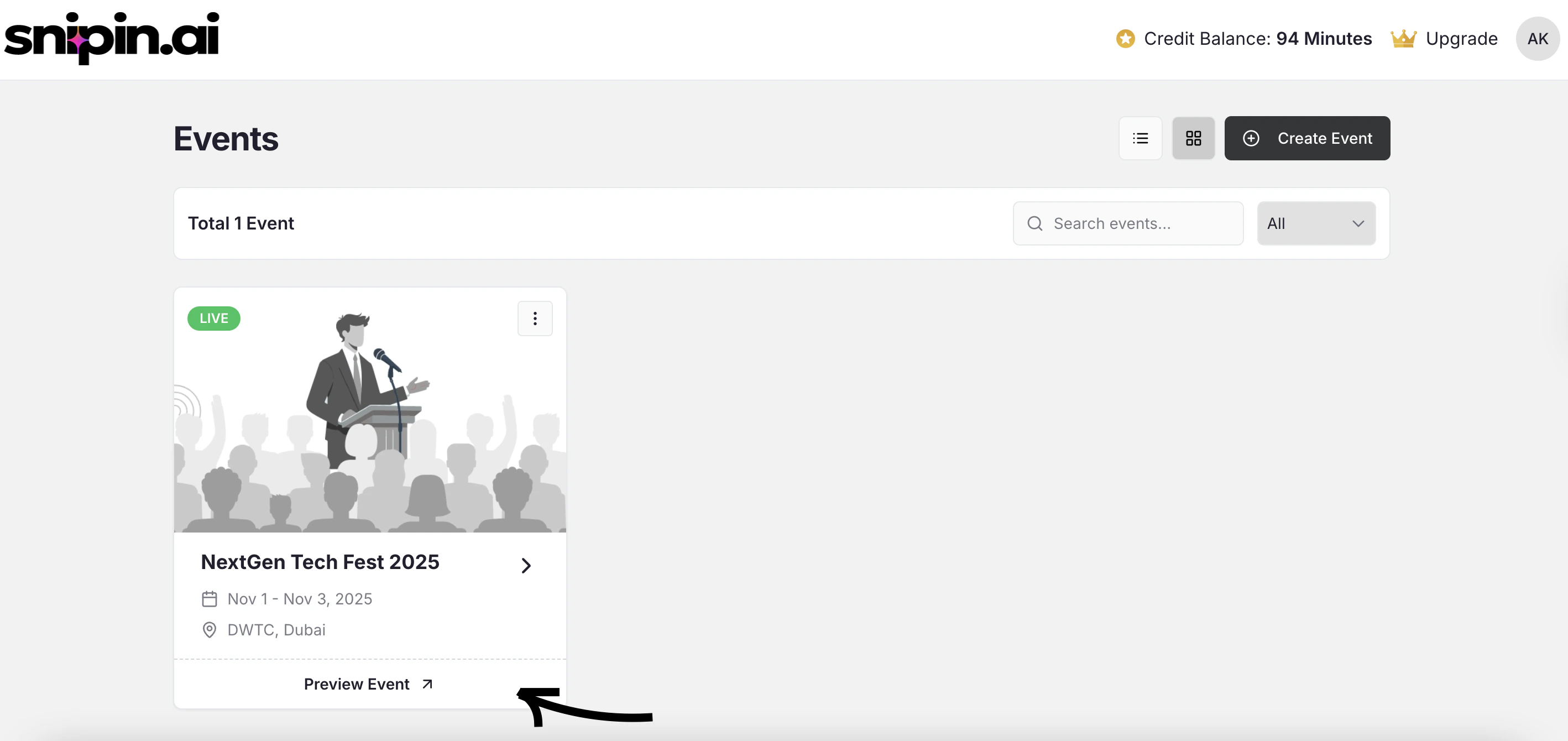
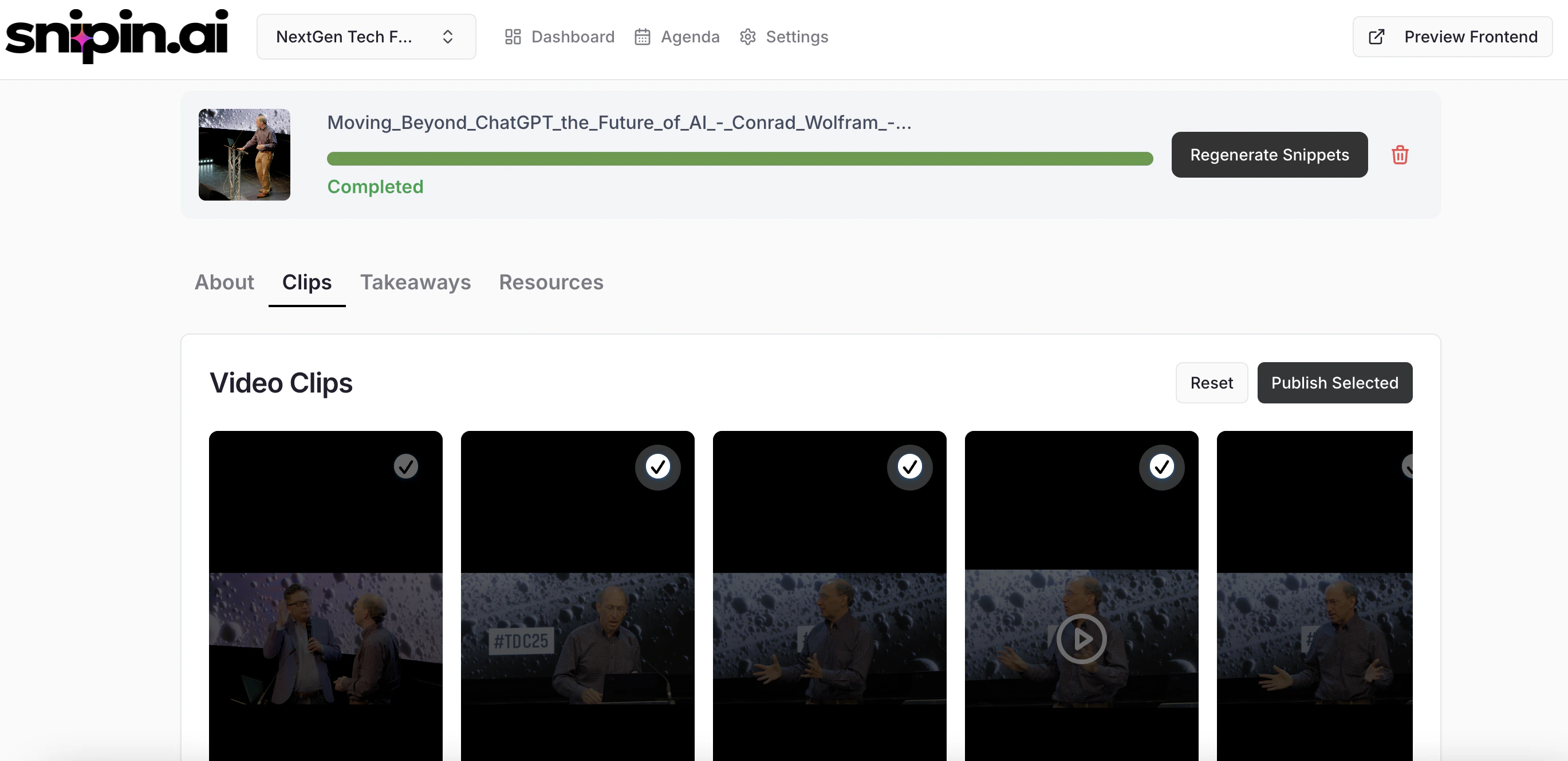
After processing is complete, go to your event dashboard and click on the event and you will see “ Preview Frontend” Link at top right to access your microsite.You’ll see several automatically generated content sections:
Summary: A concise AI-written overview of your session.
Snippets: Short, shareable video moments (usually 30–60 seconds).
Key Takeaways: Core insights and highlights extracted from your session.
Visuals: Smartly captured stills and thumbnails from the video for use in galleries or sliders.
Tip: Each clip is auto-tagged and grouped under its respective track or session to keep your microsite clean and structured automatically.
Every clip and takeaway comes with automatically generated text, but you can personalize it to match your tone or branding.To edit:
Click the Edit icon (✏️) beside the clip title or description.
Make your changes.
Click Save — the microsite updates instantly.
You can edit:
Clip titles and captions
Session descriptions
Key takeaway bullet points
Pro Tip: Use short, action-driven titles like “Top Insights from the Keynote” or “Why AI Matters for Events” — they perform better on social and microsites.
Not every generated clip needs to go live — you have full control.On your session or event page, you’ll find a Publish Toggle for each clip or takeaway:
🟢 Publish ON: Visible on your live microsite.
🔴 Publish OFF: Hidden from public view (but still available in your dashboard).
To publish/unpublish:
Toggle the switch beside the clip.
Changes reflect instantly on your microsite preview.
Tip: Use this to curate your microsite and show only the most engaging or relevant content.